Claude Code reference
Claude Code cheat sheet for beginners
 By Dan Donovan, @askdandonovan
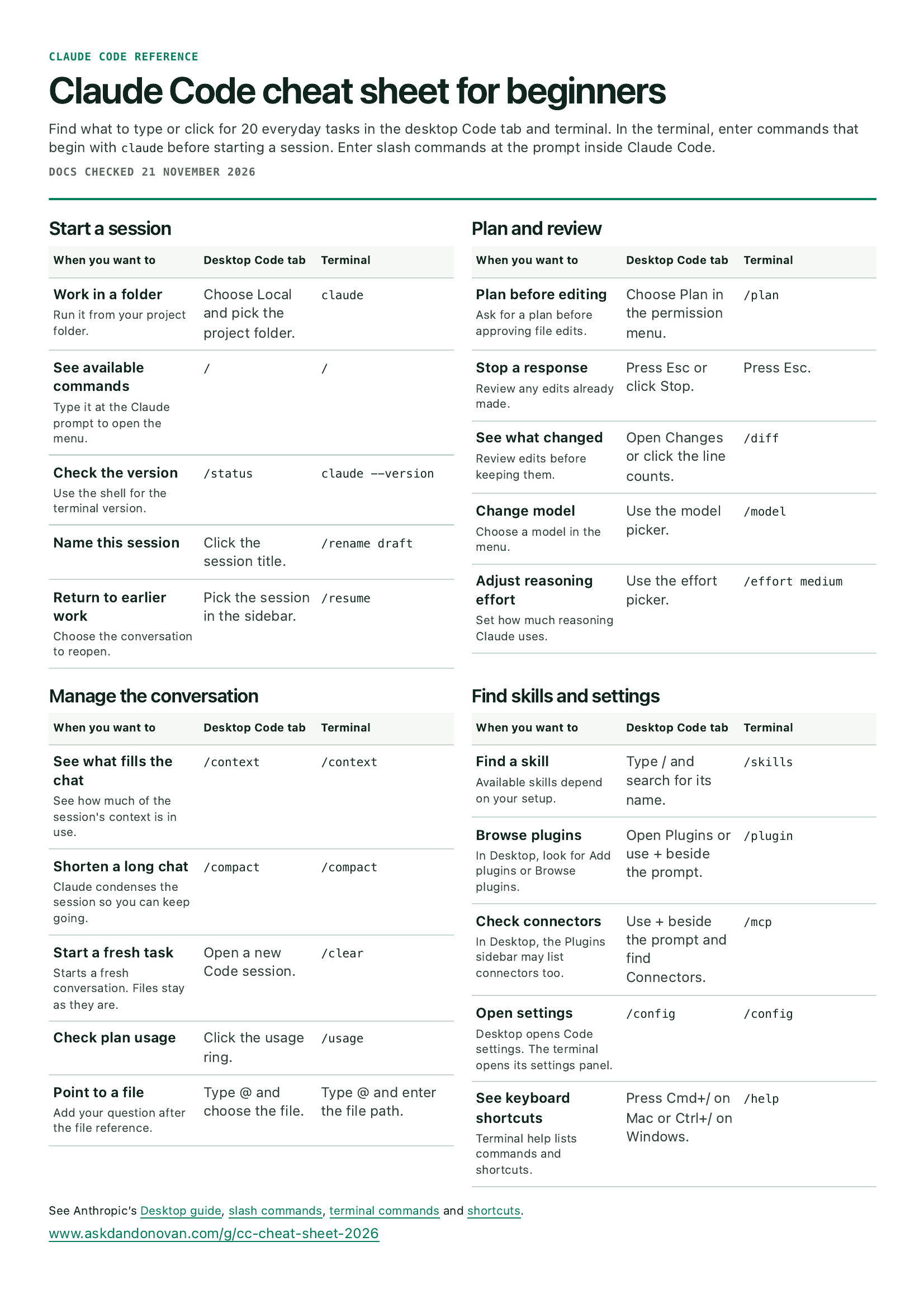
Find what to type or click for 20 everyday tasks in the desktop Code tab and terminal. In the terminal, enter commands that begin with claude before starting a session. Enter slash commands at the prompt inside Claude Code.
Docs checked
Try this in a practice folder
Open a folder with a sample file, switch to Plan, then paste this prompt.
Explain what is in this folder and suggest one small improvement. Leave the existing files as they are.
Start a session
| When you want to | Desktop Code tab | Terminal |
|---|---|---|
| Work in a folder Run it from your project folder. | Choose Local and pick the project folder. | claude |
| See available commands Type it at the Claude prompt to open the menu. | / |
/ |
| Check the version Use the shell for the terminal version. | /status |
claude --version |
| Name this session | Click the session title. | /rename draft |
| Return to earlier work Choose the conversation to reopen. | Pick the session in the sidebar. | /resume |
Plan and review
| When you want to | Desktop Code tab | Terminal |
|---|---|---|
| Plan before editing Ask for a plan before approving file edits. | Choose Plan in the permission menu. | /plan |
| Stop a response Review any edits already made. | Press Esc or click Stop. | Press Esc. |
| See what changed Review edits before keeping them. | Open Changes or click the line counts. | /diff |
| Change model Choose a model in the menu. | Use the model picker. | /model |
| Adjust reasoning effort Set how much reasoning Claude uses. | Use the effort picker. | /effort medium |
Manage the conversation
| When you want to | Desktop Code tab | Terminal |
|---|---|---|
| See what fills the chat See how much of the session's context is in use. | /context |
/context |
| Shorten a long chat Claude condenses the session so you can keep going. | /compact |
/compact |
| Start a fresh task Starts a fresh conversation. Files stay as they are. | Open a new Code session. | /clear |
| Check plan usage | Click the usage ring. | /usage |
| Point to a file Add your question after the file reference. | Type @ and choose the file. | Type @ and enter the file path. |
Find skills and settings
| When you want to | Desktop Code tab | Terminal |
|---|---|---|
| Find a skill Available skills depend on your setup. | Type / and search for its name. | /skills |
| Browse plugins In Desktop, look for Add plugins or Browse plugins. | Open Plugins or use + beside the prompt. | /plugin |
| Check connectors In Desktop, the Plugins sidebar may list connectors too. | Use + beside the prompt and find Connectors. | /mcp |
| Open settings Desktop opens Code settings. The terminal opens its settings panel. | /config |
/config |
| See keyboard shortcuts Terminal help lists commands and shortcuts. | Press Cmd+/ on Mac or Ctrl+/ on Windows. | /help |
Preview the printable sheet
Get the next guide in your inbox
Unsubscribe any time.
See Anthropic’s Desktop guide, slash commands, terminal commands and shortcuts.